
 Business License

My Signal Hound BB60D Shows No Sign of Life on the PC and Drops Off Mid-Sweep supplier
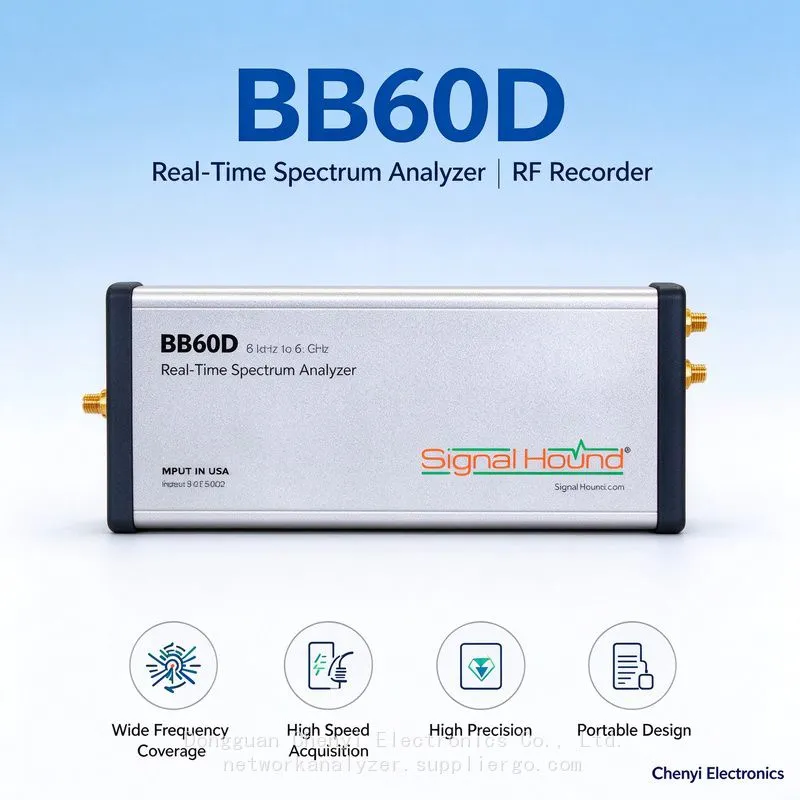
Signal Hound BB60D real-time spectrum analyzer supplier
My Signal Hound BB60D Shows No Sign of Life on the PC and Drops Off Mid-Sweep — It Needs Two USB Ports for Bus Power, So One Blue Port Alone Was Never Going to Be Stable
Symptom
A newly purchased Signal Hound BB60D is connected to a laptop: the instrument's indicator LED stays dark or glows faintly, and Spike cannot find the device. After finally getting a connection, it drops out after a few minutes of large-IQ-bandwidth acquisition or sweeping. On a desktop, "just plug one end into a rear blue port" still gives intermittent behaviour. Following online BB60C tutorials (single-cable direct connection) never matches what happens.
Root-Cause Analysis
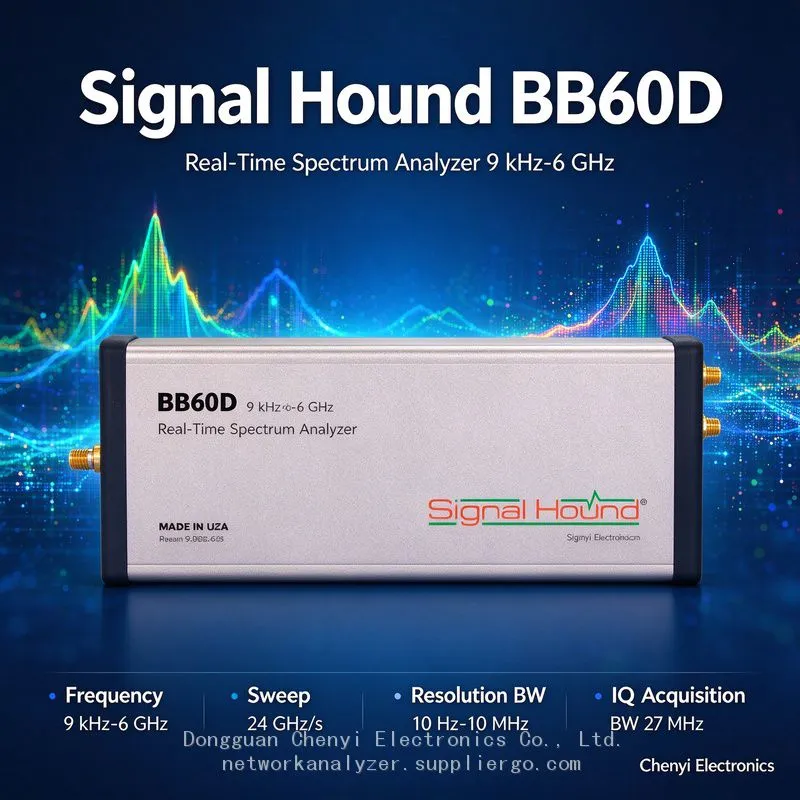
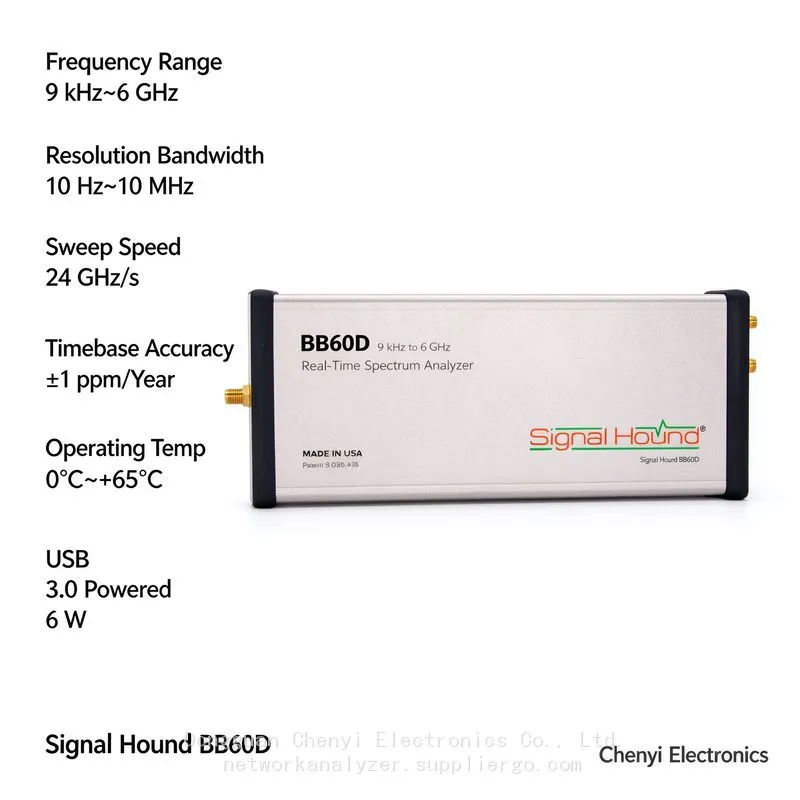
One important hardware difference between the BB60D and the BB60C is frequently overlooked: the BB60D draws power from dual USB ports for bus power — one USB 3.0 connector plus an adjacent USB 2.0 or USB 3.0 connector (published specs list roughly 6 W while operating and about 1 W idle), and the cable shipped with the unit is a Y-cable with two plugs — one carries SuperSpeed data plus part of the power, the other supplies the additional current. Many users apply their single-cable BB60C habit and plug in only one end:
Only one plug inserted: data works but the power budget falls short. The link barely holds in idle, then as soon as full load arrives (27 MHz IQ, high-speed sweep) the voltage droops → reset / disconnect. This belongs to the same family as the BB60C batch's "front-panel port can't supply enough current," but here the cause is more direct.
The two plugs are not on the same source: plugging them into different controllers or front-panel ports stacks voltage drop on top of ground-loop effects, making stability even worse.
Through a hub or docking station: both ends of the Y-cable go into the same unpowered dock, sharing one current budget, which effectively defeats the whole dual-port design.
Substitute cabling: an ordinary Micro-B cable used to fill in the "second head" may carry power without meeting the data spec, and its current capability is insufficient.
Troubleshooting Steps
Plug in both ends, into native rear ports: on a desktop, use the motherboard's rear I/O panel — one end in a blue USB 3.0 port and the other in an adjacent port. This is the first action, not an option.
Cross-check against the power profile: connects fine when idle but drops out the moment heavy acquisition starts is the classic under-powered fingerprint. Lower the IQ bandwidth below 5 MHz and retest; if it then runs stable, the current-budget diagnosis is confirmed.
Keep both ports on the same host: confirm both plugs are on the same machine and, ideally, near the same controller (adjacent ports are exactly what Signal Hound recommends, and that is why).
Remove intermediaries: no docks, hubs, or extension cables. Laptop users should put each plug into a separate port on the chassis and connect the AC adapter so the laptop does not throttle bus current.
Verify with the original cable: test with the shipped Y-cable. If you substituted your own cable at some point, put the genuine part back before drawing conclusions.
Isolate by cross-testing: if dual-port direct connection to a desktop still cannot run stably, and the LED behaves abnormally (completely dark, or solid red without resetting), route it for hardware service and attach a record of the on-site power conditions.
Acceptance Criteria
With both ports correctly connected: enumeration succeeds on the first attempt and the LED is steady; 27 MHz IQ continuous acquisition runs ≥30 minutes and full-speed sweeping runs 1 hour with no dropouts; for laptop mobile use there is a documented, verified list of working port combinations.
(Based on Signal Hound BB60D published specifications (powering via one USB 3.0 plus one adjacent USB 2.0/3.0 port, ~6 W operating power) and general BB60-series USB connectivity troubleshooting practice.)
WhatsApp:+85268839563
WeChat :13728300615
Recently Posted
-
Signal Hound BB60C IQ Recording Fails Mid-Session, Files Are Full of Gaps, or Recording Stops Early — The Problem Is the PC ,supplier
November 19, 2026Signal Hound BB60C real-time spectrum analyzer supplierSignal Hound BB60C IQ Recording Fails Mid-Session, Files Are Full of Gaps, Read More
-
Signal Hound BB60C Is Plugged In but Spike Finds No Device — The LED Flashes Red/Green. How Do I Fix This? supplier
November 19, 2026Signal Hound BB60C real-time spectrum analyzer supplierSignal Hound BB60C Is Plugged In but Spike Finds No Device — The LED Flashe Read More
-
I Already Own a Signal HoundBB60C — Should I Move Up to the Signal Hound BB60D? Signal Hound BB60D real-time spectrum analyzer supplier
November 19, 2026Signal Hound BB60D real-time spectrum analyzer supplierI Already Own a Signal HoundBB60C — Should I Move Up to the Signal Hound BB Read More
-
Monitoring the Satellite IF Band (950–2150 MHz) with a Signal Hound BB60D real-time spectrum analyzer supplier
November 19, 2026Signal Hound BB60D real-time spectrum analyzer supplierMonitoring the Satellite IF Band (950–2150 MHz) with a Signal Hound BB60D —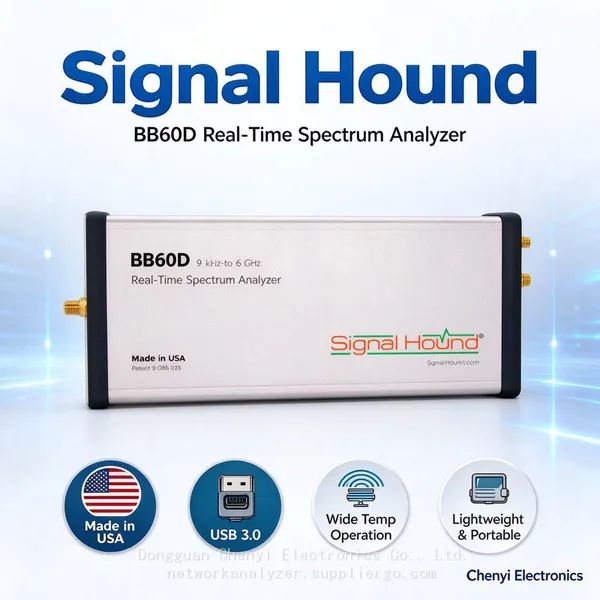 Read More

Contact Us
Recommended Products
-
 Signal Hound SM200C 100 KHz to 20 GHz Real-time Spectrum Analyzer With 10GbE Monitoring ReceiversNegotiableMOQ: 1 Unit
-
Signal Hound VSG200 Vector Signal Generator 100 KHz to 20 GHzNegotiableMOQ: 1 Unit
-
Signal Hound BB60C 9 KHz to 6 GHz Real-time Spectrum AnalyzerNegotiableMOQ: 1 Unit
-
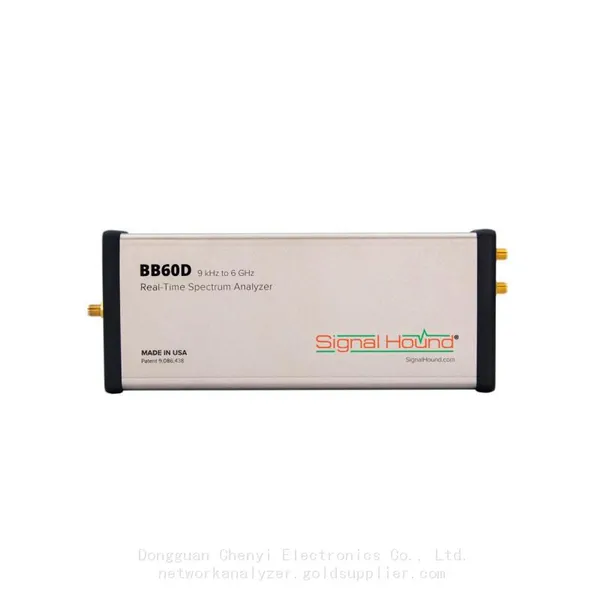
Signal Hound BB60D 9 KHz to 6 GHz Real-time Spectrum AnalyzerNegotiableMOQ: 1 Unit
-
Signal Hound SP145 100 KHz to 14.5 GHz Real-time Spectrum Analyzer Monitoring ReceiversNegotiableMOQ: 1 Unit
-
Signal Hound VSG60A 50 MHz to 6 GHz GHz Vector Signal GeneratorNegotiableMOQ: 1 Unit
-
Signal Hound VSG25A 100 MHz to 2.5 GHz Vector Signal GeneratorNegotiableMOQ: 1 Unit
-
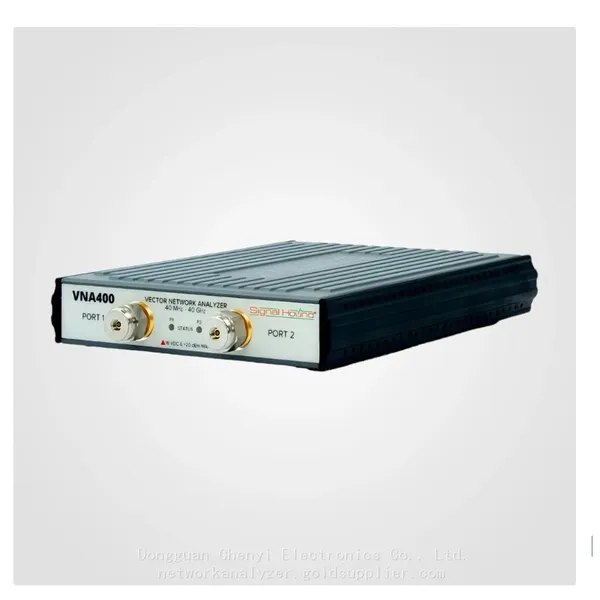
Signal Hound VNA400 40 MHz to 40 GHz 2-port Vector Network AnalyzerNegotiableMOQ: 1 Unit
-
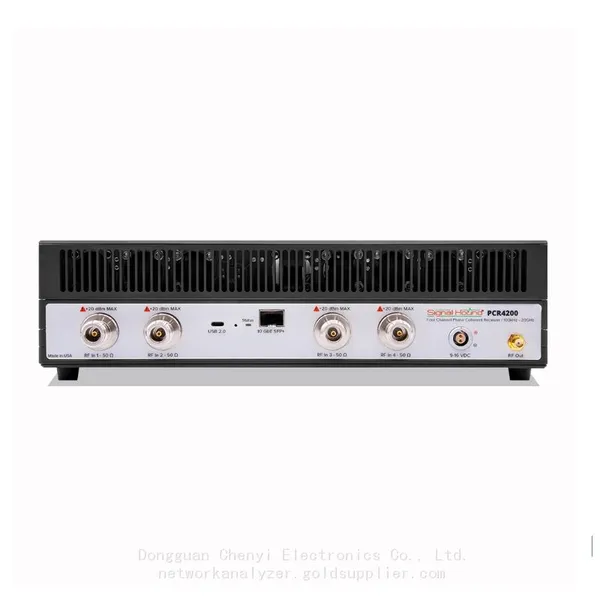
Signal Hound PCR4200 100 KHz to 20 GHz Four-Channel Phase Coherent ReceiverNegotiableMOQ: 1 Unit
-
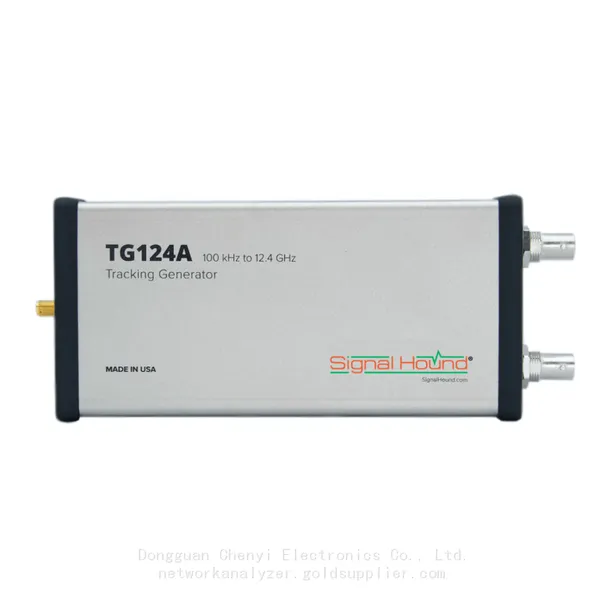
Signal Hound TG124A 100 KHz to 12.4 GHz Tracking GeneratorNegotiableMOQ: 1 Unit
-
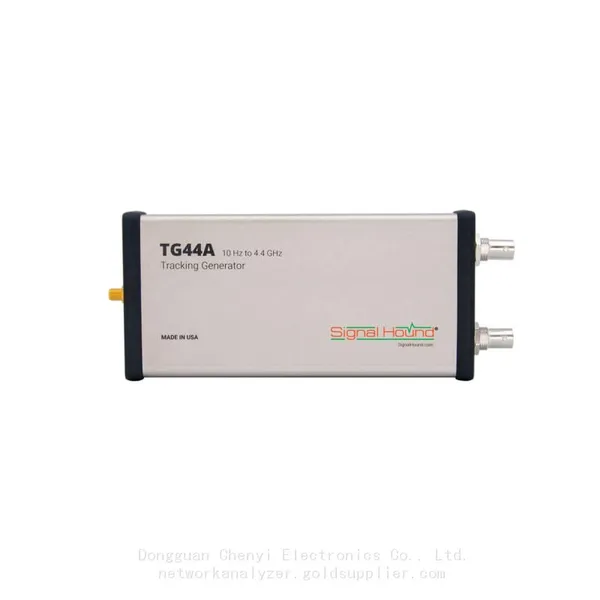
Signal Hound TG44A 10 Hz to 4.4 GHz t Tracking GeneratorNegotiableMOQ: 1 Unit
-
Signal Hound SA124B 100 KHz to 12.4 GHz Spectrum AnalyzerNegotiableMOQ: 1 Unit
-
Signal Hound SA44B 1 Hz to 4.4 GHz Spectrum AnalyzerNegotiableMOQ: 1 Unit
-
SM200B Real‑time Spectrum Analyzer,USB3.0 RTSA,100kHz-20GHz,calibrated I/Q Capture for 5G Test & Interference HuntingNegotiableMOQ: 1 Unit
-
Signal Hound SM435C 100 KHz to 43.5GHz Real-time Spectrum Analyzer With 10GbE Monitoring ReceiversNegotiableMOQ: 1 Unit
-
Signal Hound SM435B 100 KHz to 43.5GHz Real-time Spectrum Analyzer Monitoring ReceiversNegotiableMOQ: 1 Unit
-
Signal Hound PN400 Phase Noise and VCO Test System 100 KHz to 43.5 GHzNegotiableMOQ: 1 Unit
-
Keysight E4980A Precision LCR Meter 20 Hz to 2 MHzNegotiableMOQ: 1 Unit
-
Keysight E4980B and E4980BL Precision LCR Meter 20 Hz to 2 MHzNegotiableMOQ: 1 Unit
-
Keysight U1733C Handheld LCR Meter 100Hz 120Hz 1kHz 10kHz 100kHzNegotiableMOQ: 1 Unit