
 Business License

BB60C Drops Out After Minutes of Use — The Trace Freezes. How Do I Troubleshoot It Thoroughly?
BB60C Drops Out After Minutes of Use — The Trace Freezes. How Do I Troubleshoot It Thoroughly?
Symptom
The connection starts fine, but after a few minutes to half an hour Spike reports a lost device or communication error, or the spectrum trace simply stops updating. Re-plugging the USB cable restores operation — temporarily. In some setups the dropouts grow more frequent over days even though nothing in the environment was changed.
Root Cause
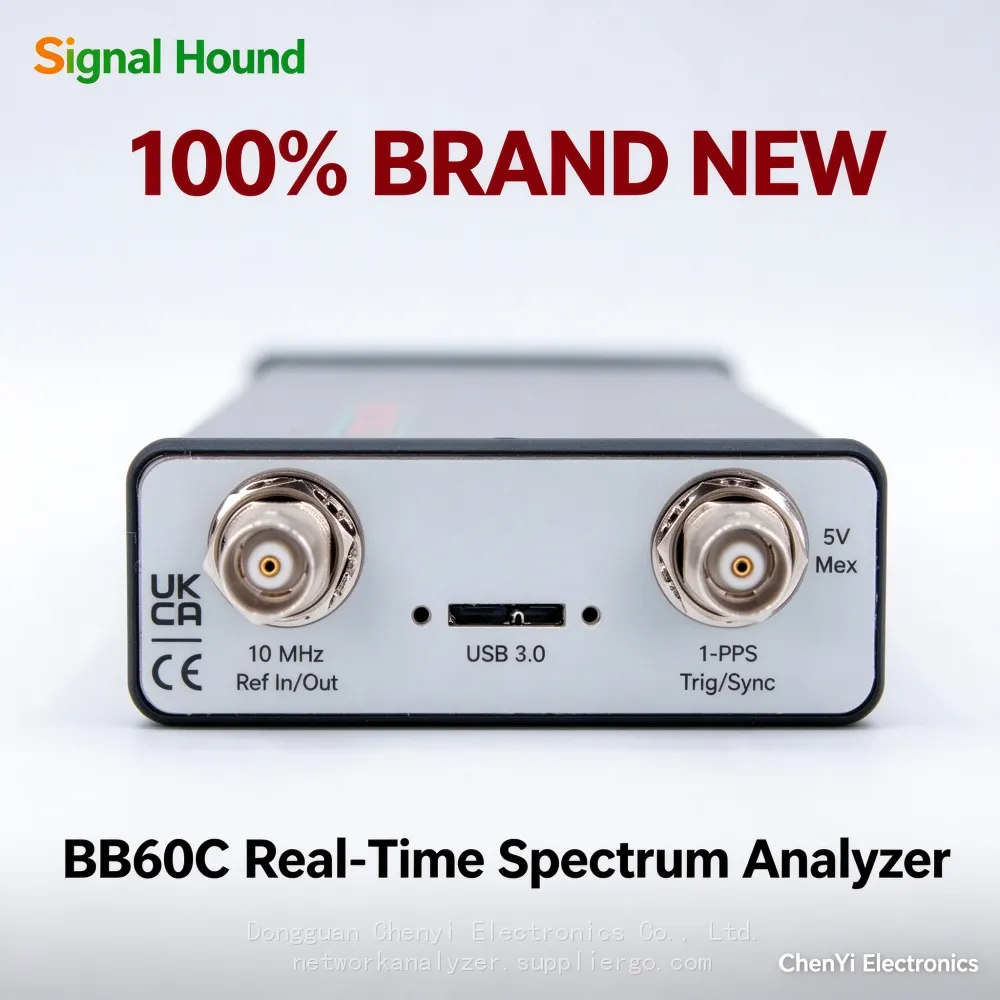
The BB60C pushes digitized data to the PC continuously at up to ~140 MB/s over USB 3.0. A link that is only "marginally" good will enumerate fine but corrupt under sustained load, and the OS silently drops it. Classic margin-killers: long or poor-quality cables, hubs, front-panel ports, controller sharing, aggressive power management, and strong RF fields coupling into the cable itself.
Troubleshooting Steps
Shorten and simplify the link first. Native rear USB 3.0 port, original short cable, zero hubs. This single change resolves most intermittent-dropout cases.
Watch for RF-coupling scenarios. If dropouts only happen near a transmitter, high-power amplifier, or during certain measurements, the USB cable is acting as an antenna. Clip ferrite cores onto the cable near both ends, use better-shielded cable, and route it away from the radiating source.
Kill all power-management interference. High-performance power plan; USB selective suspend disabled; "turn off this device to save power" disabled on every root hub; laptop connected to AC power (battery saver profiles throttle USB).
Free the bus. External SSDs, webcams, capture cards and phone tethering on the same controller can starve the 140 MB/s stream. Move the analyzer to its own controller — check in Device Manager which root hub each device sits on.
Check BIOS/UEFI settings. Some boards offer "USB 3.0 mode: xHCI / Auto" or per-port speed limits; a port running at USB 2.0 speed cannot sustain the data rate. Verify the port negotiates SuperSpeed.
Test the opposite direction — the PC. Connect the analyzer to another machine for an extended run. Stable there = host-side problem; identical dropouts everywhere = escalate to service.
Update firmware only via the official path (see the article on firmware/software versions) — older firmware levels lack the USB 3.0 transfer capability added in later revisions.
Acceptance Test
A continuous scan (ideally full real-time bandwidth) runs for at least one hour with no drops and no frozen trace. Keep a note of which port/cable combination passed, and standardize on it.
*(Based on publicly available Signal Hound BB60C user manual and datasheet specifications.)
WhatsApp:+85268839563
WeChat :13728300615
Recently Posted
-
My BB60C Can't Pick Up Weak Signals Between 9 kHz and 20 MHz and Readings Keep Jumping — Broken Front End or Wrong Technique?
October 27, 2026My BB60C Can't Pick Up Weak Signals Between 9 kHz and 20 MHz and Readings Keep Jumping — Broken Front End or Wrong Technique?S Read More
 -
BB60C IQ Recording Fails Mid-Session, Files Are Full of Gaps, or Recording Stops Early — The Problem Is the PC
October 27, 2026BB60C IQ Recording Fails Mid-Session, Files Are Full of Gaps, or Recording Stops Early — The Problem Is the PCSymptomRF/IQ recordi Read More
 -
The BB60C Screen Is Full of Signals "That Shouldn't Exist" — How Do I Tell Real Signals From Instrument Artifacts?
October 27, 2026The BB60C Screen Is Full of Signals "That Shouldn't Exist" — How Do I Tell Real Signals From Instrument Artifacts?Sy Read More
 -
My BB60C Reads Several dB Off Versus Another Instrument — Where Should Amplitude Errors Be Traced From?
October 27, 2026My BB60C Reads Several dB Off Versus Another Instrument — Where Should Amplitude Errors Be Traced From?SymptomOn the same signal,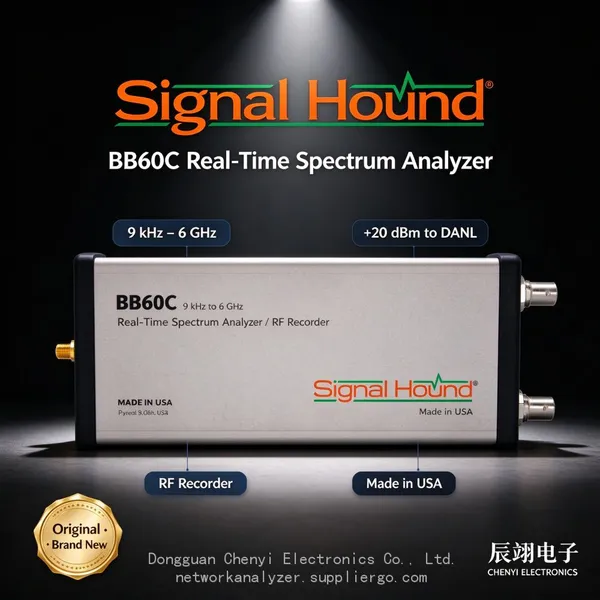 Read More

Contact Us
Recommended Products
-
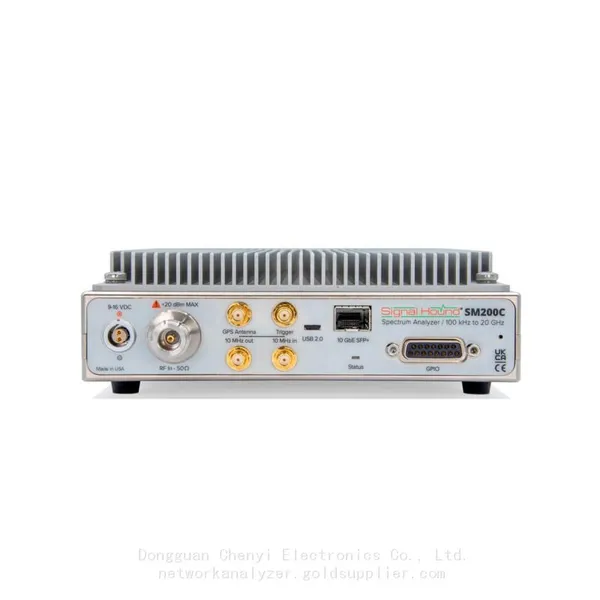
 Signal Hound SM200C 100 KHz to 20 GHz Real-time Spectrum Analyzer With 10GbE Monitoring ReceiversNegotiableMOQ: 1 Unit
 -
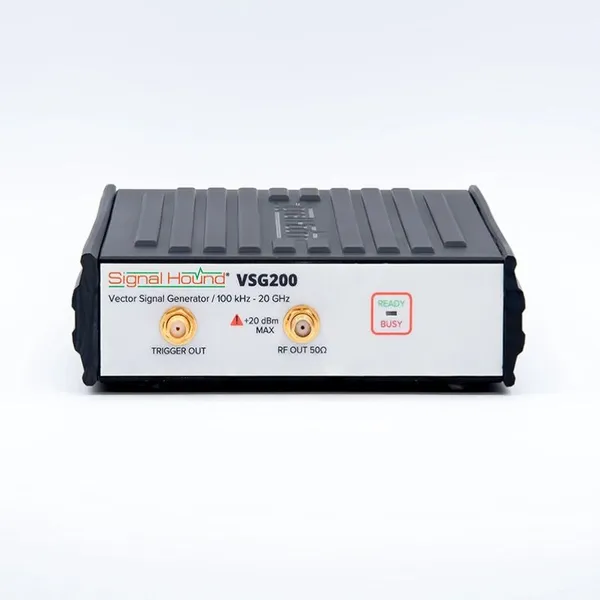
Signal Hound VSG200 Vector Signal Generator 100 KHz to 20 GHzNegotiableMOQ: 1 Unit
-
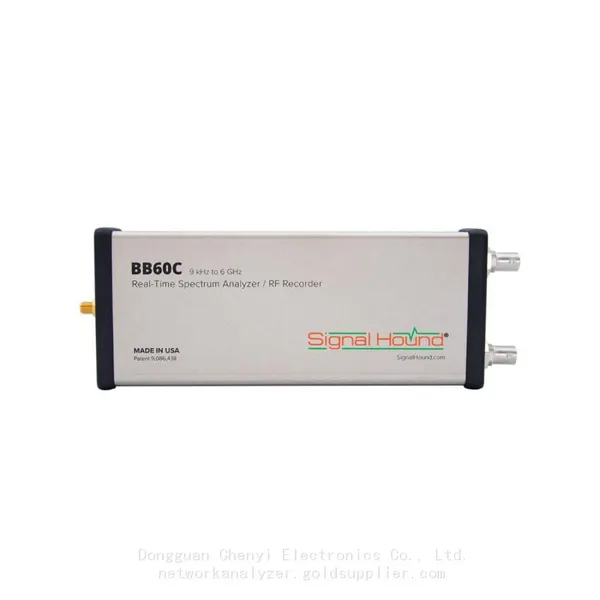
Signal Hound BB60C 9 KHz to 6 GHz Real-time Spectrum AnalyzerNegotiableMOQ: 1 Unit
-
Signal Hound BB60D 9 KHz to 6 GHz Real-time Spectrum AnalyzerNegotiableMOQ: 1 Unit
-
Signal Hound SP145 100 KHz to 14.5 GHz Real-time Spectrum Analyzer Monitoring ReceiversNegotiableMOQ: 1 Unit
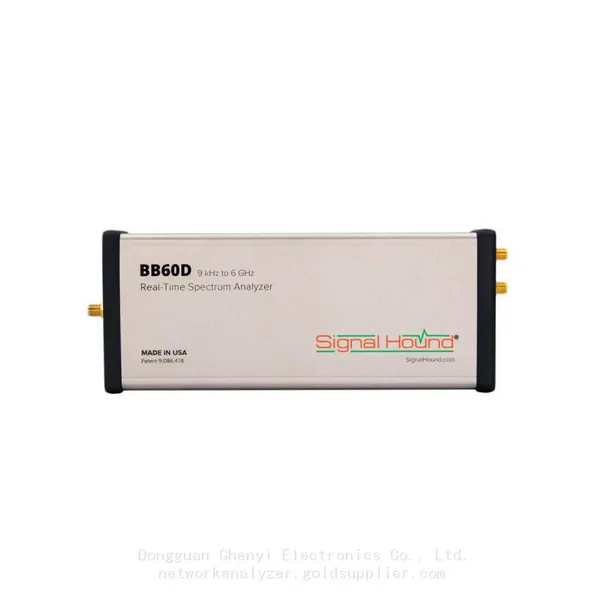
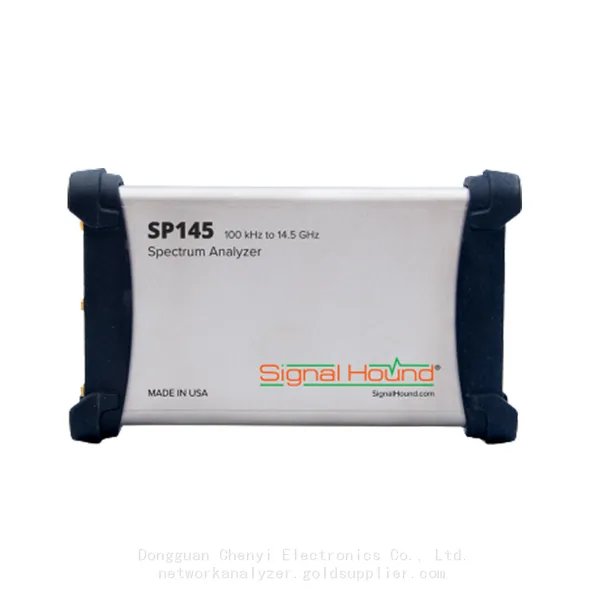
-
Signal Hound VSG60A 50 MHz to 6 GHz GHz Vector Signal GeneratorNegotiableMOQ: 1 Unit
-
Signal Hound VSG25A 100 MHz to 2.5 GHz Vector Signal GeneratorNegotiableMOQ: 1 Unit
-
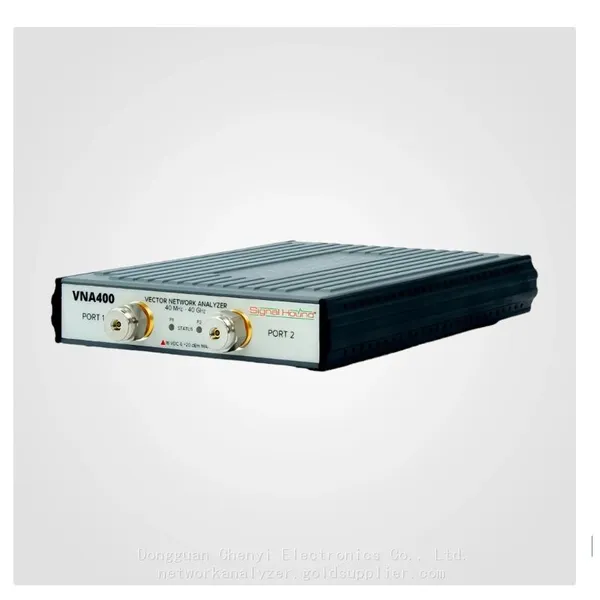
Signal Hound VNA400 40 MHz to 40 GHz 2-port Vector Network AnalyzerNegotiableMOQ: 1 Unit
-
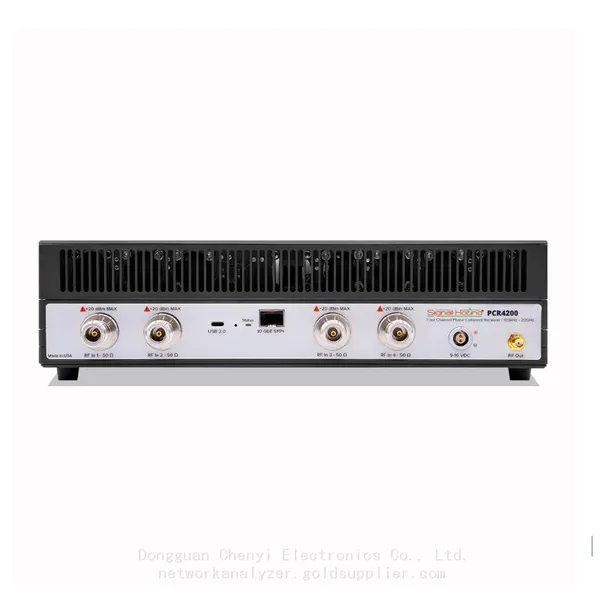
Signal Hound PCR4200 100 KHz to 20 GHz Four-Channel Phase Coherent ReceiverNegotiableMOQ: 1 Unit
-
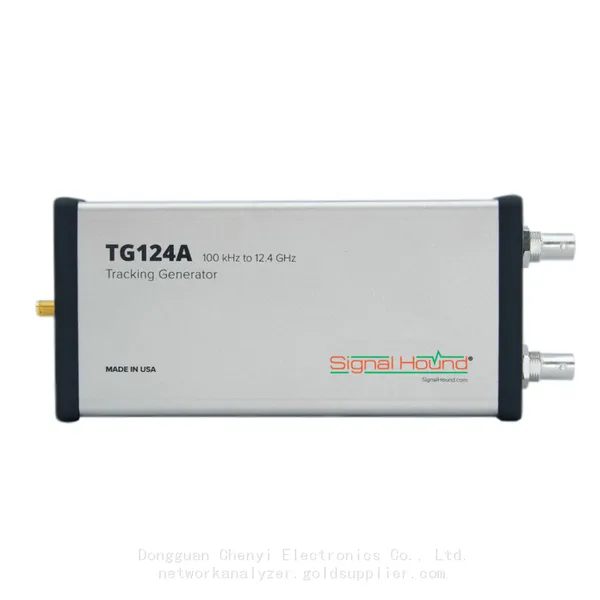
Signal Hound TG124A 100 KHz to 12.4 GHz Tracking GeneratorNegotiableMOQ: 1 Unit
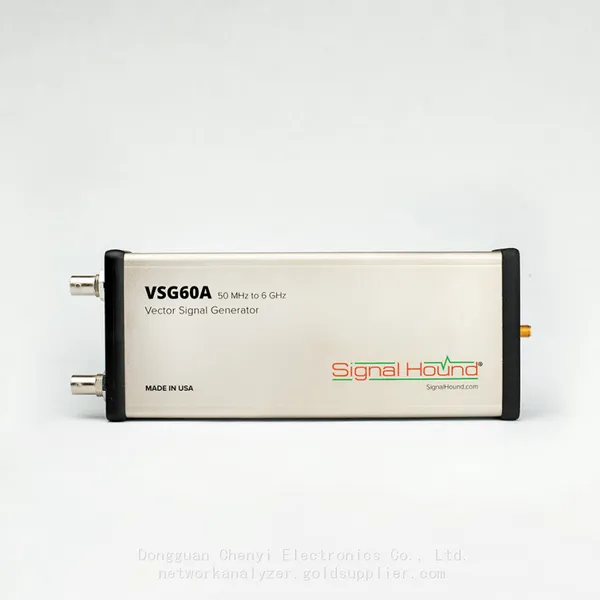
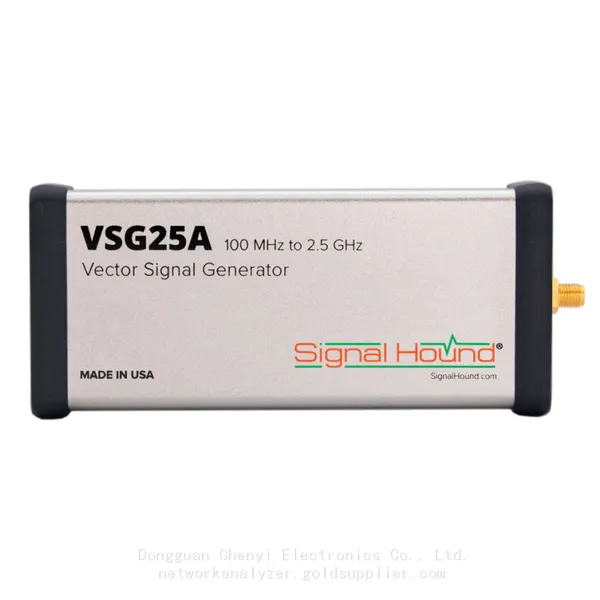
-
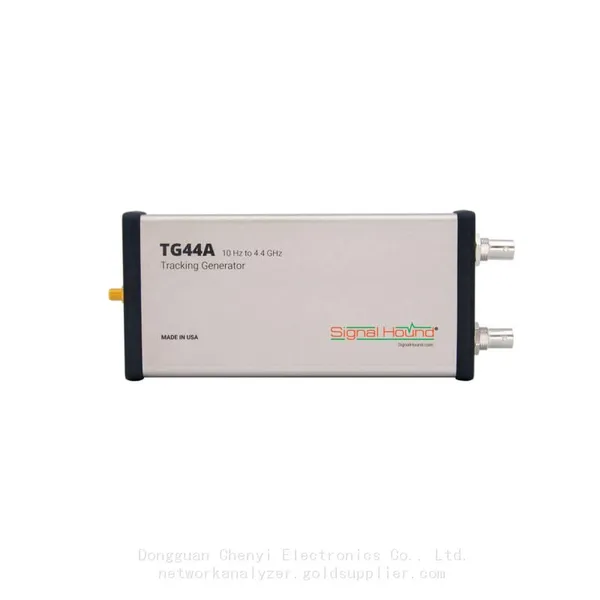
Signal Hound TG44A 10 Hz to 4.4 GHz t Tracking GeneratorNegotiableMOQ: 1 Unit
-
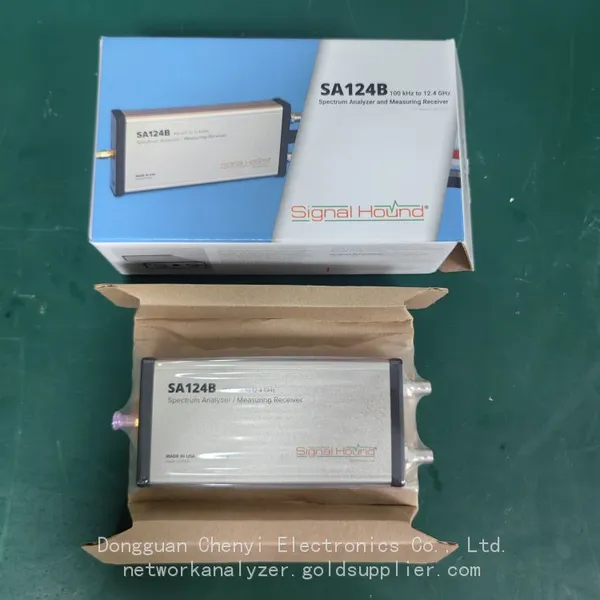
Signal Hound SA124B 100 KHz to 12.4 GHz Spectrum AnalyzerNegotiableMOQ: 1 Unit
-
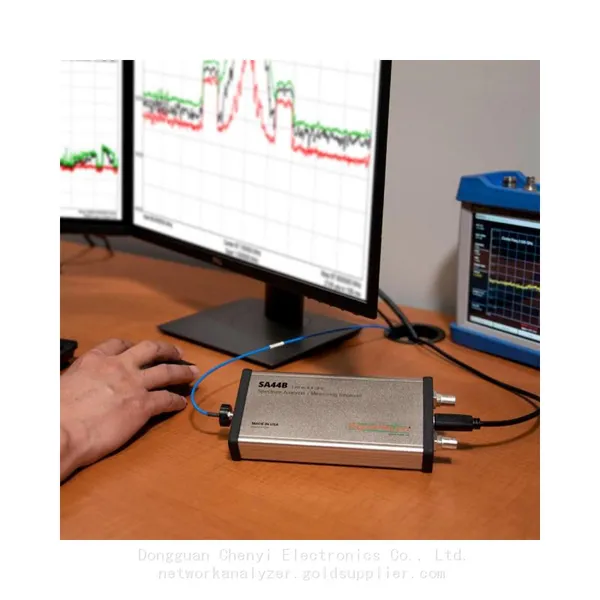
Signal Hound SA44B 1 Hz to 4.4 GHz Spectrum AnalyzerNegotiableMOQ: 1 Unit
-
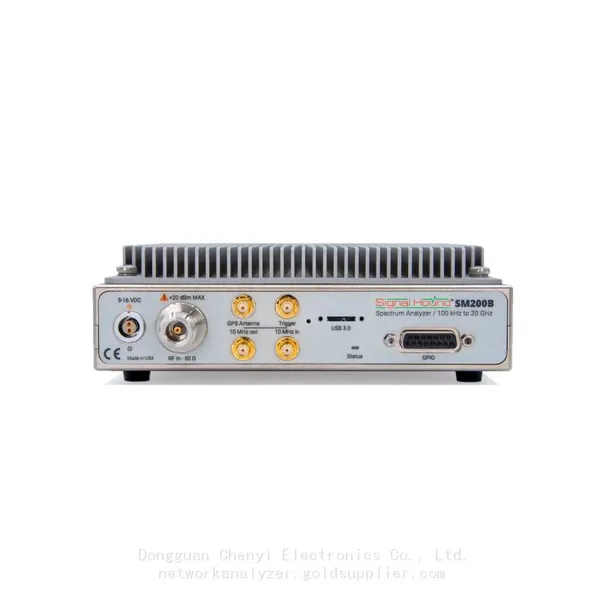
SM200B Real‑time Spectrum Analyzer,USB3.0 RTSA,100kHz-20GHz,calibrated I/Q Capture for 5G Test & Interference HuntingNegotiableMOQ: 1 Unit
-
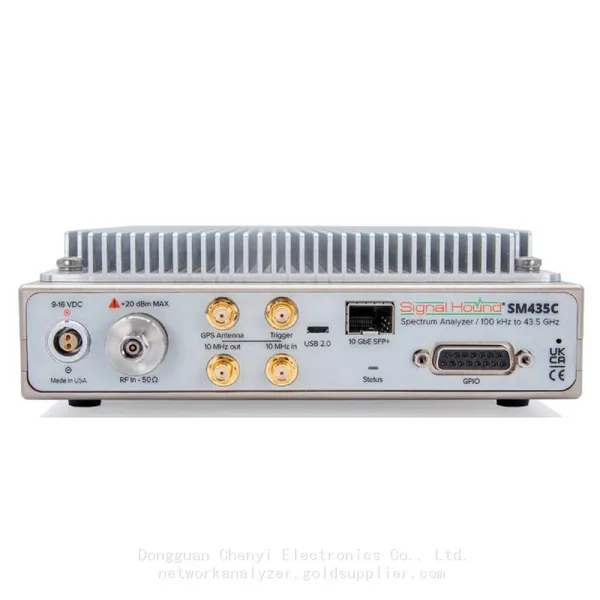
Signal Hound SM435C 100 KHz to 43.5GHz Real-time Spectrum Analyzer With 10GbE Monitoring ReceiversNegotiableMOQ: 1 Unit
-
Signal Hound SM435B 100 KHz to 43.5GHz Real-time Spectrum Analyzer Monitoring ReceiversNegotiableMOQ: 1 Unit
-
Signal Hound PN400 Phase Noise and VCO Test System 100 KHz to 43.5 GHzNegotiableMOQ: 1 Unit
-
Keysight E4980A Precision LCR Meter 20 Hz to 2 MHzNegotiableMOQ: 1 Unit
-
Keysight E4980B and E4980BL Precision LCR Meter 20 Hz to 2 MHzNegotiableMOQ: 1 Unit
-
Keysight U1733C Handheld LCR Meter 100Hz 120Hz 1kHz 10kHz 100kHzNegotiableMOQ: 1 Unit